Layers to PPTFigma plugin

Figma to PowerPoint: export frames as an editable deck

Select your frames and get a real .pptx: text stays text, shapes stay shapes, slides keep your order and speaker notes come along. It opens in PowerPoint, Keynote and Google Slides.

  • Native text, shapes & gradients
  • Speaker notes
  • Converted on your computer

Opens in

  • PowerPoint
  • Keynote
  • Google Slides
  • PDF
  • PNG

Editable, not screenshots

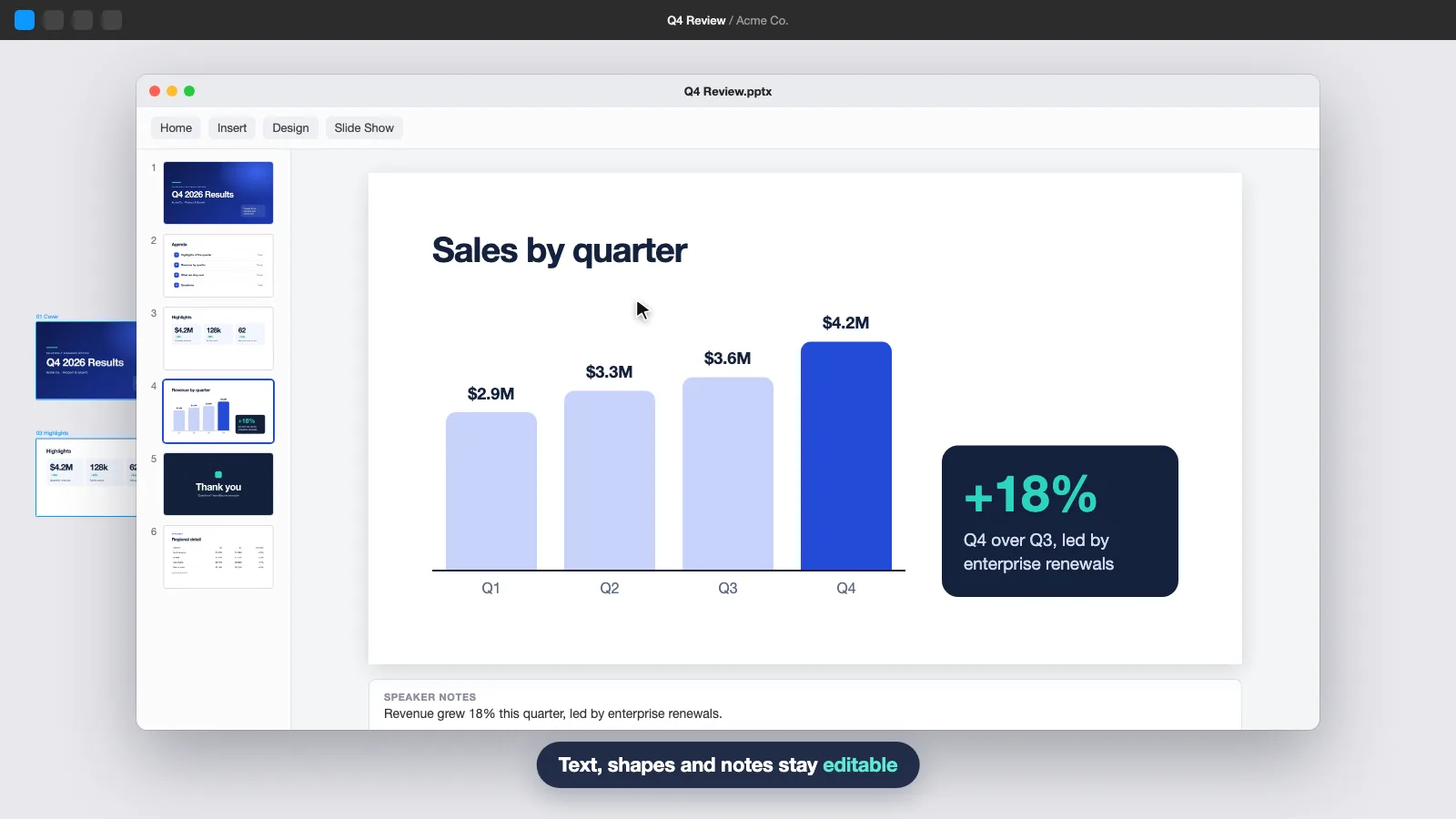
Text stays text. Shapes stay shapes.

Layers to PPT rebuilds each frame with native PowerPoint objects, so the deck keeps working after export.

  • Text boxes with your fonts, sizes, colours and line spacing
  • Rectangles, rounded cards, lines and vector shapes
  • Linear and radial gradients, bullet and numbered lists, tables
An exported slide open in a presentation app, with its title being edited

Slide order

Slides in reading order, then yours.

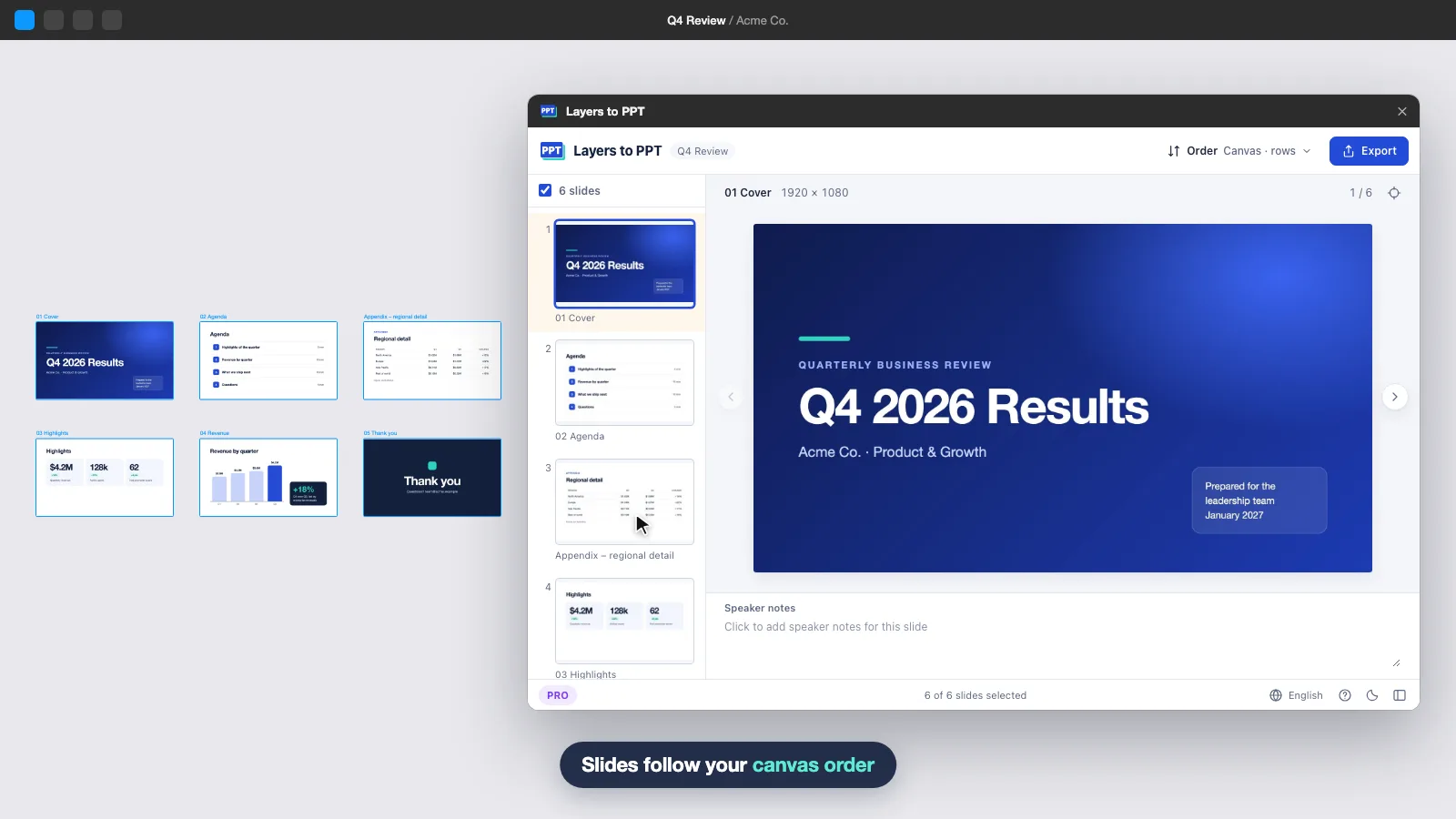
Frames follow your canvas from left to right, top to bottom. Drag a slide in the list to move it; the order is saved with the page.

  • Sort by canvas rows, columns, layers or name
  • Skip a slide with its checkbox
  • Figma Slides keeps its own order and skipped slides
The Layers to PPT slide list next to a large preview of the first slide

Speaker notes

Write notes where you see the slide.

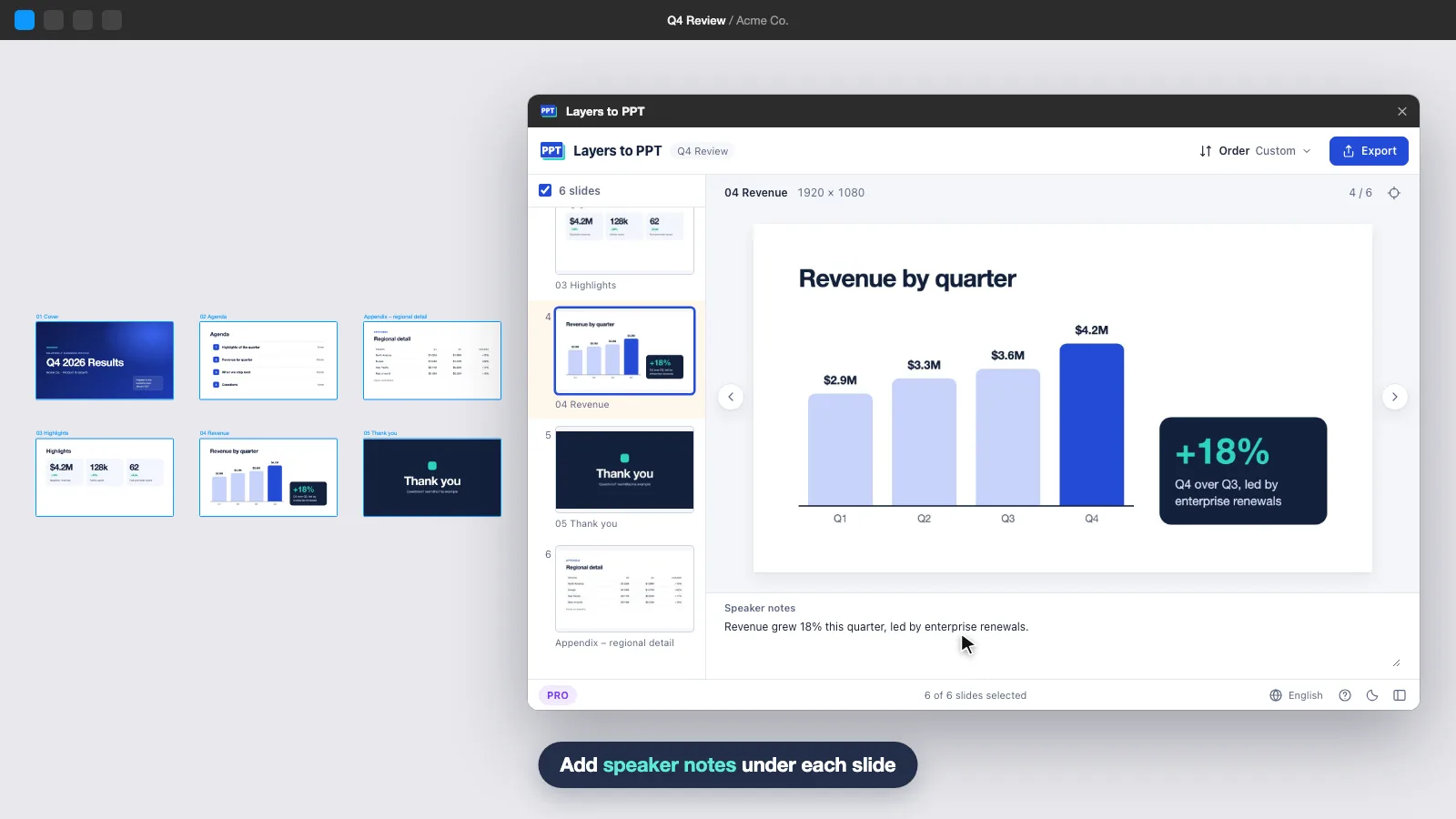
Type speaker notes under the preview, like in PowerPoint. They appear in Presenter View and in Keynote and Google Slides.

  • Notes are saved in your Figma file
  • Fonts PowerPoint may lack are flagged before export
  • Replace a missing font in one click
Speaker notes typed under the Revenue slide in the plugin

How it works

From frames to slides in three steps

  1. Select frames

    Select the frames for your deck, or press ⌘A / Ctrl+A on the canvas, then run Layers to PPT.

  2. Order and annotate

    Drag slides into order and add speaker notes. Choose one slide size: keep the frame, 16:9, 4:3 or A4.

  3. Export

    Click Export. The .pptx is written on your computer and opens in PowerPoint, Keynote and Google Slides.

Everything is converted inside Figma on your computer. Your designs, file names and layers are never uploaded; only license checks and anonymous counts reach our server.

Pricing

One Pro, three ways to pay

Every plan unlocks the same Pro features: unlimited slides, 4× images, speaker notes and font replacement. Save 72% with yearly, or pay once and keep it.

Monthly

For a deck now and then.

$12/month

Billed monthly · Renews automatically, cancel any time

Most popular

Yearly

Save 72%

For decks every month.

$3.25/monthinstead of $12

$39 billed yearly · Renews automatically, cancel any time

Save $105 a year

Best value

Lifetime

Pay once

For years of decks.

$79once

One payment · No subscription

Pays for itself in 7 months

Every Pro plan includes

  • Unlimited slides per export
  • 4× Ultra HD images
  • Speaker notes
  • Font replacement
  • Activate on up to 3 Figma installations

Secure checkout, tax and invoices by Waffo Pancake. See the Refund Policy.

Try it first. Free exports up to 5 slides at a time with 1× and 2× images, to PowerPoint, PDF and PNG, and your first 3 exports include every Pro feature. No account or card. Install on Figma — free

FAQ

Questions about Layers to PPT

Can Figma be exported to PowerPoint?

Not from Figma Design on its own: Figma exports PNG, JPG, SVG and PDF. Layers to PPT is a Figma plugin that exports your frames as an editable .pptx, with native text, shapes, gradients, lists, tables and speaker notes. Figma Slides has a built-in PowerPoint export; the plugin also works there and keeps gradients that the built-in export turns into solid colors.

Is the PowerPoint file really editable?

Yes. Text, rectangles, rounded cards, lines, gradients, lists and tables become native PowerPoint objects. Effects PowerPoint cannot draw, such as blend modes or background blur, are flattened into an image while the text on top stays editable. Add #image to a layer name to export that group as a single picture.

Does it work with Google Slides and Keynote?

Yes. Open the .pptx in Keynote, or import it in Google Slides with File → Import slides. Speaker notes come along.

Are my designs uploaded?

No. Layers to PPT converts on your computer. Only license checks and anonymous usage counts reach our server; slide content, file names and layer data never leave Figma.

What does the free plan include?

Free exports up to 5 slides at a time with 1× or 2× images, to PowerPoint, PDF and PNG. Your first 3 exports include every Pro feature, so you can try unlimited slides, 4× images, notes and font replacement before you buy.

How do subscriptions work?

Pro is $79 once for lifetime access, $39 a year or $12 a month. Subscriptions renew automatically until you cancel. To cancel, click Manage subscription in the plugin's license panel, or open the Waffo customer portal (pancake.waffo.ai) and sign in with your checkout email. Pro keeps working until the end of the period you paid for. Waffo Pancake handles checkout, tax and invoices.

How do I activate Pro after paying?

If you buy inside the plugin, Pro turns on by itself a few seconds after payment. If you buy on this page, the confirmation page shows your license key: in the plugin, click Upgrade at the bottom left, choose "I have a license key" and paste it. One license works on up to 3 Figma installations.

Does it work in Figma Slides?

Yes. Layers to PPT runs in Figma Design and Figma Slides. In Figma Slides, the slide order and skipped slides are respected.

Can I export Figma to Google Slides?

Yes, through PowerPoint: export the .pptx with Layers to PPT, then in Google Slides choose File → Import slides, or open the .pptx from Google Drive. Figma itself has no Google Slides export.

Your next deck is already in Figma.

Install Layers to PPT and export your first slides in a minute. No account needed.